Setting Up Sync
HAMRS Sync keeps your logbooks, QSOs, and operator profiles identical across every device you run HAMRS on. Log a contact on your phone in the field, and it's waiting for you on your desktop when you get home.
Setup happens in two places:
- hamrs.app — your account lives here. This is where you subscribe and where your API Key comes from.
- Each HAMRS app — desktop, mobile, and web. You paste the same API Key into every one of them.
HAMRS Sync requires an active hamrs.app subscription. If your subscription lapses, sync pauses until it's renewed. Your data stays on your devices in the meantime.
Part 1: Get your API Key from hamrs.app
1. Sign in to hamrs.app
Go to hamrs.app and sign in, or create an account and subscribe if you haven't already.
2. Copy your API Key from the Dashboard
Once you're subscribed, your Dashboard shows your sync token:
Copy this token to the settings of your HAMRS apps to start syncing data.
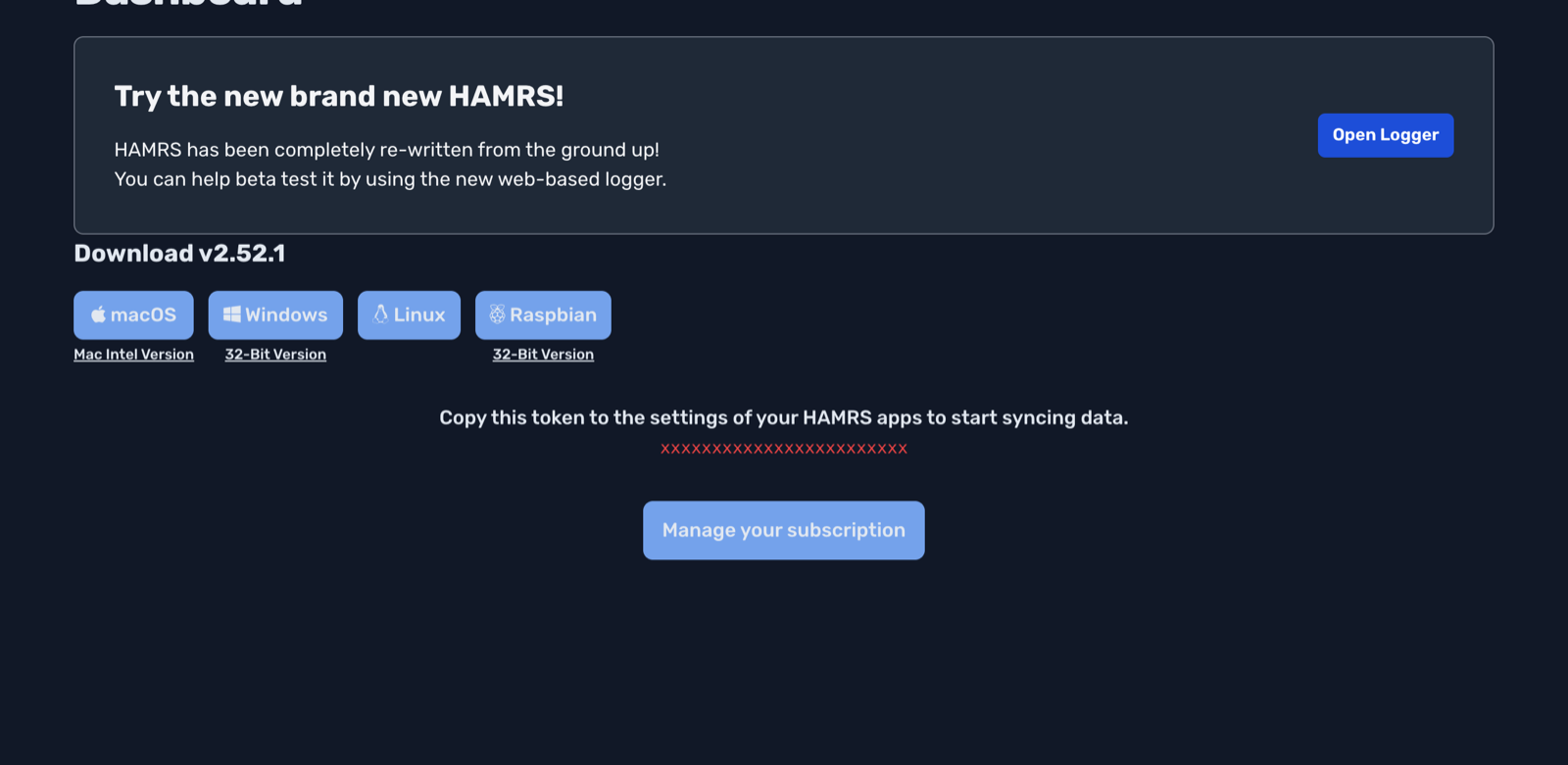
The token is created for you automatically the first time you visit the Dashboard with an active subscription, so there's nothing to generate by hand. Copy it. It's a long string of letters and numbers and you'll need to paste it into each app in Part 2.
You can also view, rename, or revoke your keys under Account > Sync on hamrs.app. If you ever think your key has been exposed, revoke it there and create a new one. You'll then need to update the key in each of your apps.
Part 2: Add the API Key to each HAMRS app
Repeat these steps on every device you want to sync. They all use the same key.
1. Open Config
Click Config in the top navigation bar.

2. Go to the Integrations tab
3. Paste your API Key into the HAMRS Sync section
Paste the key from hamrs.app into the API Key field and click Submit.
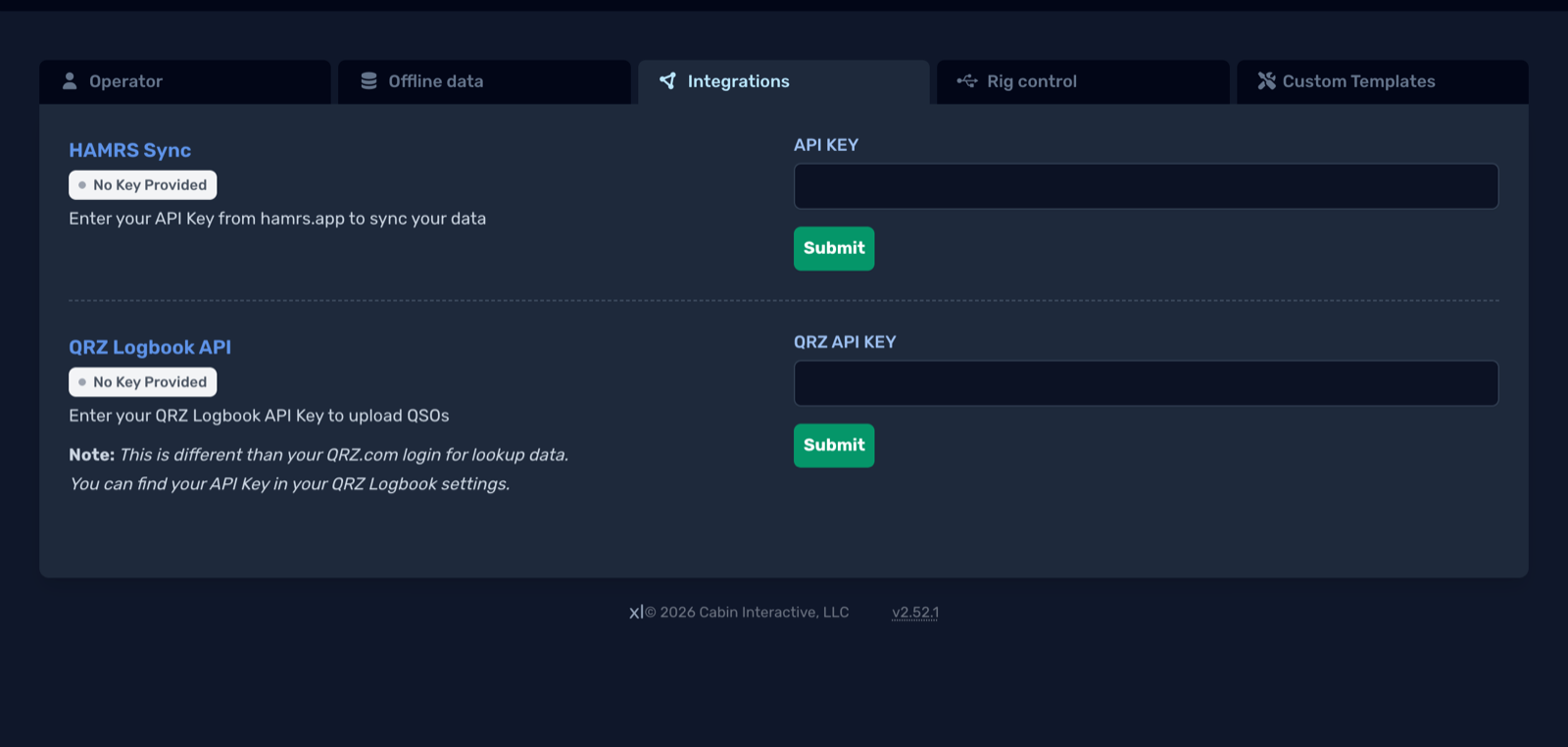
4. Check the status badge
The badge next to HAMRS Sync tells you where you stand:

| Badge | Meaning |
|---|---|
| No Key Provided | No API Key has been entered yet. |
| Connected | Sync is working. A Last Synced time appears below the badge. |
| Errored | HAMRS couldn't sync. The error message explains why (see Troubleshooting below). |
That's it for this device. Move on to the next one and repeat Part 2.
On a fresh install, the First Time Setup screen has an Already have data? notice with a link to the Sync Page. That page is just the API Key field on its own. Paste your key there and your profiles and logbooks will be pulled down before you create anything new.

Using the web logger
If you open HAMRS in your browser from the Open Logger button on your hamrs.app Dashboard, the web logger is signed in with your key automatically. You don't need to paste anything.
How sync works
Once a key is in place, HAMRS syncs continuously in the background whenever it has an internet connection. There's no button to press.
- First sync on a new device pulls down everything from your account before the app finishes starting up. On a large logbook this can take a minute.
- While you're offline, HAMRS keeps logging to the device as normal. Changes are pushed the next time you're back online.
- Conflicts are rare in practice. Sync is per-QSO, so editing different contacts on different devices merges cleanly.
Live Sync
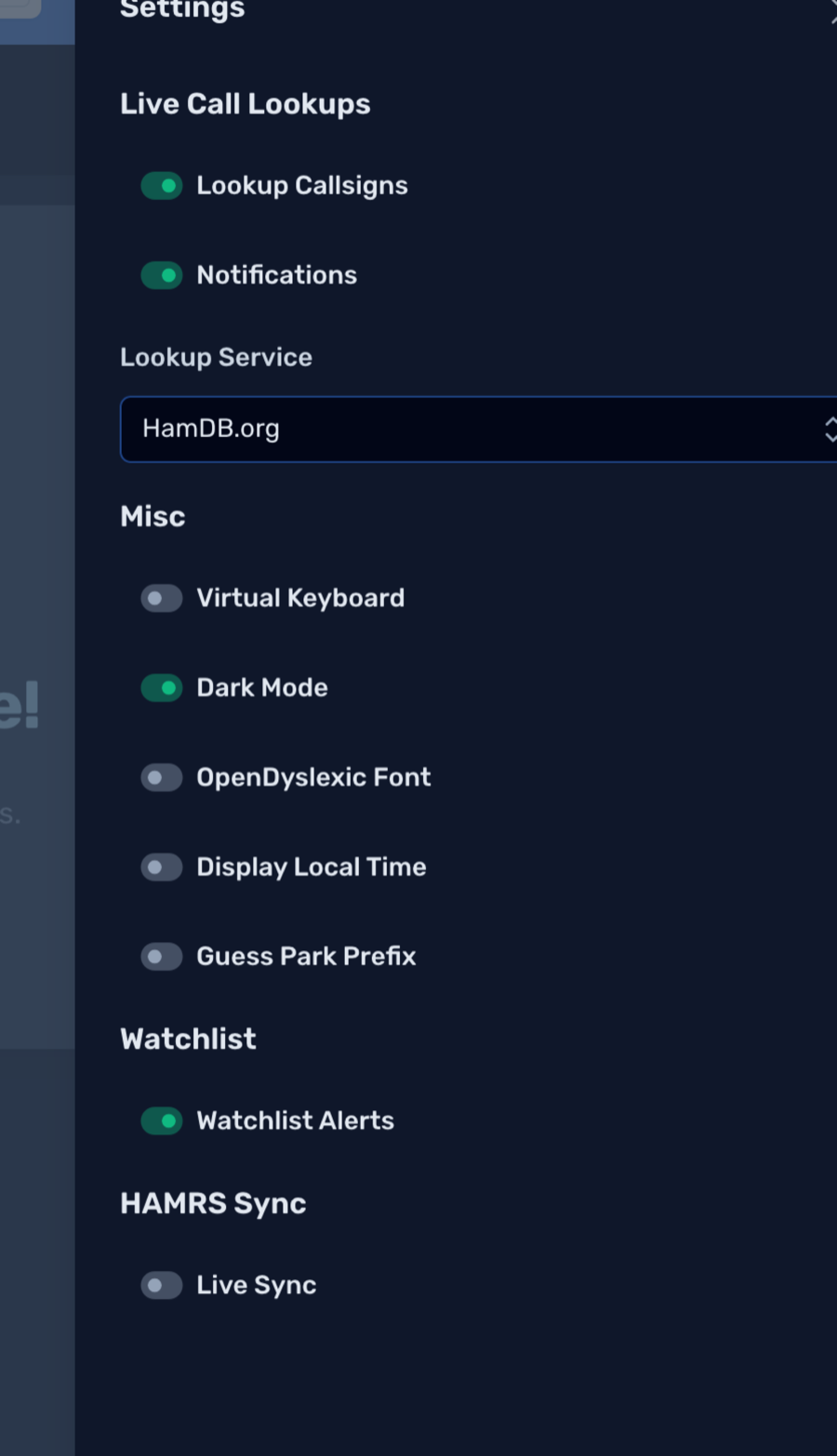
The quick settings panel (the sliders icon in the top navigation bar) has a Live Sync toggle. With it on, a logbook you have open will refresh on screen as changes arrive from your other devices. With it off, data still syncs in the background, but you'll see the new QSOs the next time you open that logbook. The toggle only appears once a valid API Key is configured and you're online.
Troubleshooting
Badge says "Errored" with "Sync Paused: hamrs.app subscription is inactive."
Your hamrs.app subscription has lapsed. Renew it under Manage your subscription on hamrs.app. HAMRS re-checks automatically, or you can quit and relaunch to force a check. If you don't plan to renew, clear the API Key field to dismiss the error.
Badge says "Errored" with another message
- Make sure the key is pasted completely, with no leading or trailing spaces. Click into the field to reveal the key and compare it to hamrs.app.
- Confirm the key hasn't been revoked under Account > Sync on hamrs.app.
- Check that the device is online.
Badge says "Connected" but a device is missing QSOs
- Confirm the same key is entered on both devices. A different key on each device means they're syncing to different accounts.
- Give it a moment. Large initial syncs take time.
- Open the logbook again, or turn on Live Sync so changes appear while the logbook is open.
Need to start over on a device?
Clear the API Key field and save. Sync is disabled for that device, and your local data is left in place. Paste the key back in to resume.